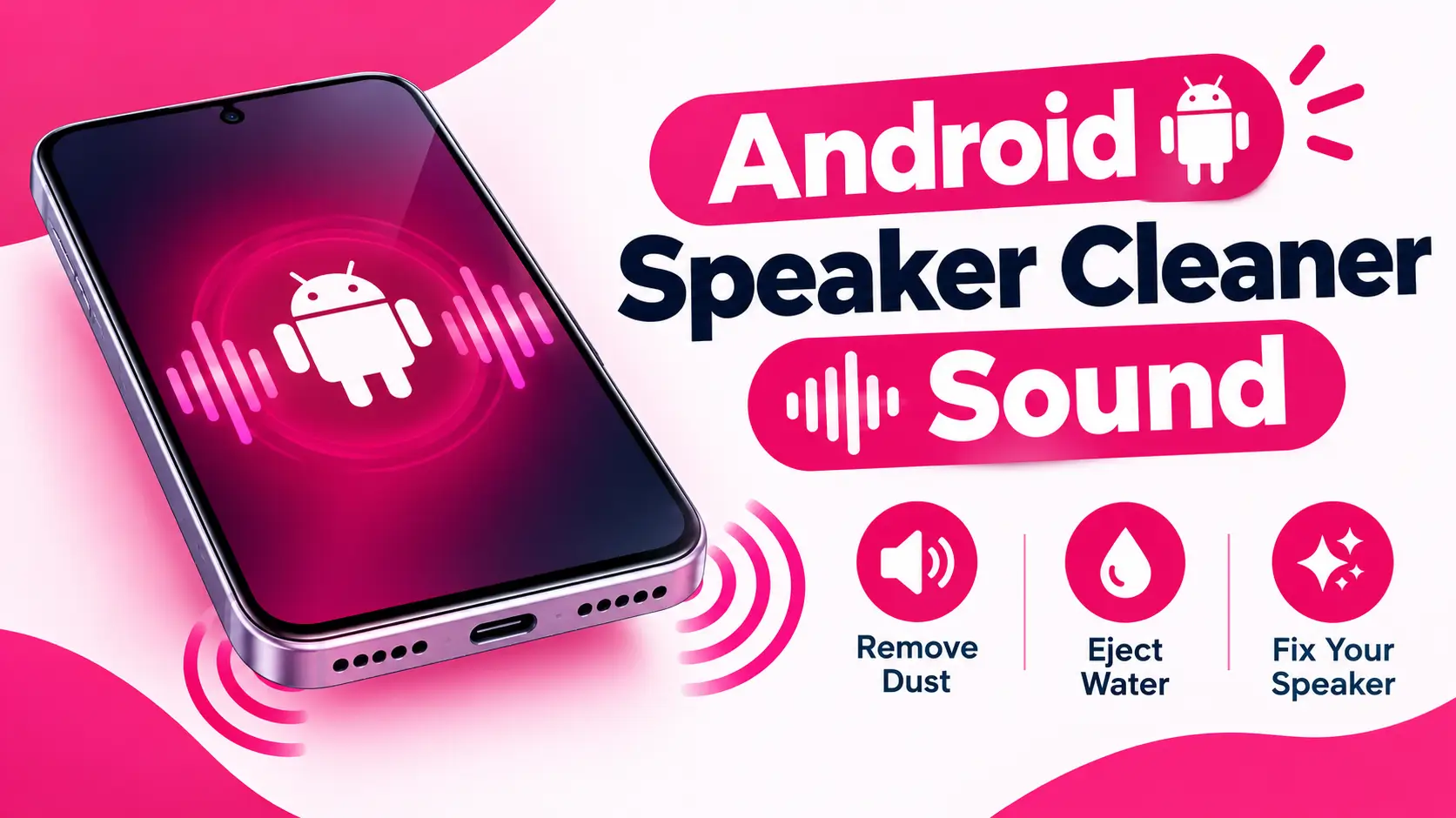
Android Speaker Cleaner Sound
Duration
Max volume. Speaker facing down. Keep away from ears.
Vibration not supported here. Sound only.
ANDROID SPEAKER CLEANER
Clear Android Speakers With Safe Cleaner Sound
Use this free Android speaker cleaner sound to run browser-based cleaner tones that work across Android OEMs without installing apps. Play calibrated tones in the 165–230 Hz band for water and near 200 Hz for dust — no app install required.
How to Use the Android Speaker Cleaner Step by Step
You can finish the whole process in about a minute. Follow these steps in order.
-
Remove the Case
Take off your phone case and screen protector if it covers the speaker holes.
-
Wipe the Phone
Wipe the phone with a soft, dry cloth, especially around the speaker grille.
-
Disconnect Other Audio
Unplug headphones and turn off Bluetooth so the sound plays from the phone speaker.
-
Face the Speaker Down
Hold the phone with the speaker facing down so water can drain out.
-
Start at a Safe Volume
Start with a low or medium volume, then press the play button on the cleaner page.
-
Raise the Volume Slowly
If the sound is still weak, turn the volume up a little at a time. Stay at a comfortable level.
-
Play for 30 to 60 Seconds
Let the tone play, then stop and wipe the phone again.
-
Repeat and Check
Repeat two or three times if needed, then play music to check the sound.
Tip: If you see water drops coming out, wipe them away each time. Give the phone a few minutes in a dry place before you use it at high volume.
RELATED TOOLS
More Cleaner Sounds Beyond Android
Finished with Android speaker cleaner sound? Jump to another device utility for Samsung, iPhone, Android, or earpiece-focused cleaning.
Samsung Speaker Cleaner Sound
Galaxy dual-speaker cleaner — useful after you finish Android speaker cleaner sound on Android.
iPhone Speaker Cleaner Sound
iOS water eject and dust tones if you also maintain iPhones beside Android.
Ear Speaker Cleaner Sound
Front earpiece clarity tool paired with Android loudspeaker cleaning.
165–230 Hz
Android Safe Band
30–60 sec
Android Clean Cycle
No Install
Android In Browser
Android Ready
Works Instantly
Why Android Speakers Sound Muffled
When your Android speaker cleaner sound needs a boost, the grille is often blocked by water droplets or compacted dust. Maxing volume rarely helps and can stress the driver. A dedicated cleaner tone uses low-frequency pressure to move debris while you keep the device speaker-down at about 50–60% volume.
This page focuses on Pixel, Samsung, Xiaomi, OnePlus, Oppo, Realme, Motorola, and more. Typical warning sign: media volume that varies wildly between apps after a dusty commute. Face the primary Android loudspeaker down and keep Bluetooth off during cycles. Disable absolute volume quirks by disconnecting Bluetooth headphones first.
Searchers looking for Android speaker cleaner sound, fix android speaker, android water eject sound, and android dust cleaner tone will find practical steps here—not generic filler copied from other brand pages.

SCIENCE & SAFETY
How Android Speaker Cleaning Works
Frequency choice for Android
At 165–230 Hz, the diaphragm moves enough to pump moisture out of mesh openings. For dry lint on Android devices, a steadier tone near 200 Hz for 30–60 seconds often restores clarity. Android skins differ, but grille physics stay the same—tone plus gravity still wins.
Android cleaning routine
- Wipe the exterior and remove bulky cases covering the speaker path.
- Face the primary Android loudspeaker down and keep Bluetooth off during cycles.
- Set volume mid-level—never maximum on a clogged android speaker.
- Run water pulses for liquid events or a steady dust tone for gradual muffling.
- Rest between cycles, then verify with media and a voice sample.
Limits of tone cleaning
Internal corrosion or torn drivers need service. If distortion remains after several safe Android speaker cleaner sound cycles, stop escalating volume and seek repair.
WHY THIS TOOL
Android Cleaning Built for Real Use
Browser-Based Access
Launch Android speaker cleaner sound in Chrome, Safari, or Edge without downloading APKs or App Store installs.
Tuned Frequency Ranges
Uses water-eject bands and dust modes suited to Android speaker ports—not random noise blasts.
Volume-Safe Guidance
Short cycles and speaker-down placement protect android drivers from overheating.
Fix Your Android Speaker
To fix your android speaker, diagnose first: sudden underwater tone after a splash → water pulses; slow fade with no spills → dust mode; one-sided weakness → clean that grille and check the case cutout.
Disable absolute volume quirks by disconnecting Bluetooth headphones first. After Android speaker cleaner sound cycles, validate with music, a voice memo, and a live call. Persistent silence, heavy crackle, or heat near the port means stop tones and consider hardware service.
Water Cleaning Sound for Android Speakers
If your android speaker sounds bubbly or underwater after rain, sinks, or sweat, use pulsed water cleaning sound between 165 and 230 Hz. Face the primary Android loudspeaker down and keep Bluetooth off during cycles. Wipe first, then run 10–15 second pulses with rests instead of one continuous blast.
This Android speaker cleaner sound water mode helps grille-level liquid on Pixel, Samsung, Xiaomi, OnePlus, Oppo, Realme, Motorola, and more. Skip rice myths and hot-air tools. Saltwater exposure needs extra caution—dry thoroughly and limit cycles if rattling appears.
Unique to this guide: focus on media volume that varies wildly between apps after a dusty commute after liquid events, then confirm with a short recording before your next call or stream.

What Is an Android Speaker Cleaner Sound?
An Android speaker cleaner sound is a special low-frequency tone that makes your phone speaker vibrate so water and dust can move out of the grille. You play it through your phone speaker, and the shaking helps push small drops and loose dirt toward the outside.
People use it when their phone sounds quiet, muffled or crackly after rain, a splash, a sweaty workout or a dusty day. It is free, fast and works right in your browser, so you do not need to install an app or create an account.
This guide explains how the cleaner sound works, when to use it, how to use it step by step and what to do if it does not help.
Signs Your Android Speaker Needs Cleaning
Your speaker probably needs cleaning when the sound changes suddenly and nothing else explains it. Watch for these signs:
- Music, videos or calls sound quieter than before
- The sound is muffled, as if it is behind a cloth
- You hear crackling, buzzing or a rattle at medium volume
- Voices sound thin or hollow during calls
- The sound is clear on headphones but poor on the speaker
- You can see lint or dirt in the speaker holes
If you notice any of these, run a speaker test first. It shows whether the problem is the speaker or a setting such as volume limit, Bluetooth or sound balance.
Ready to Clean Your Android Speaker?
Run Android speaker cleaner sound whenever android audio feels dull after water, dust, or travel. Keep volume moderate, face the grille down, and verify with media plus a quick voice test.
Speaker Dust Cleaning Sound for Android
Choose speaker dust cleaning sound when android volume fades slowly without a spill. Lint, fabric fibers, and fine grit pack into the mesh. A steady tone near 200 Hz for 30–60 seconds, with the grille down, helps dislodge dry debris better than water pulses.
For Pixel, Samsung, Xiaomi, OnePlus, Oppo, Realme, Motorola, and more, watch for media volume that varies wildly between apps after a dusty commute. Face the primary Android loudspeaker down and keep Bluetooth off during cycles. Tap gently between cycles so particles can fall free—never poke the mesh with pins.
This dust section is exclusive to the Android cleaner page and is not reused on other brand drafts.

Android Speaker Test: Frequently Asked Questions
Find quick and simple answers about testing your Android phone speakers.
What is an Android speaker test?
An Android speaker test plays sounds through your phone so you can check if the speakers work well. You can listen for clear sound, good volume, and any problems like crackling or silence.
Why should I test my phone speakers?
Speakers can get weak or damaged over time. Dust, water, drops, or software issues can all affect sound. A quick test helps you find the problem early, so you can fix it or get help.
How do I test my Android speaker?
- Turn up your phone's media volume.
- Disconnect any headphones or Bluetooth devices.
- Start the speaker test and listen carefully.
- Check if the sound is clear, loud, and smooth.
Try the test in a quiet room for the best results.
Can I check the left and right speakers separately?
Yes, if the test has left and right sound options. Play the left channel first, then the right. Each side should sound equal in volume and clarity.
Many Android phones have only one main speaker at the bottom. Some newer phones use the earpiece as a second speaker for stereo sound.
What should I do if I hear no sound?
- Check that your phone is not on silent or mute mode.
- Raise the media volume, not just the ringer volume.
- Turn off Bluetooth and unplug headphones.
- Restart your phone and test again.
If there is still no sound, the speaker may need repair.
Why does my speaker sound crackly or distorted?
Crackling often happens when the volume is too high, the speaker is dirty, or it has been damaged by water or a drop. Lower the volume and test again. If the noise stays, gently clean the speaker grille with a soft, dry brush.
Is the speaker test safe for my phone?
Yes, it is safe when used at a normal volume. Avoid playing very loud sounds for a long time. Start at a low volume and raise it slowly.
Does the test work on all Android phones?
It works on most Android phones and tablets, including Samsung, Xiaomi, Oppo, Vivo, Realme, OnePlus, and Google Pixel. Use an updated browser for the best results.
Can I test my headphones or earphones too?
Yes. Plug in your wired headphones or connect your Bluetooth earbuds, then run the test. You can check each ear separately to see if both sides work well.
How can I improve low or muffled speaker sound?
- Remove your phone case if it covers the speaker.
- Clean the speaker holes with a soft, dry brush.
- Turn off sound effects or equalizer settings that reduce volume.
- Update your phone's software.
If the sound is still weak, visit a trusted repair shop.